Spreadsheet Formulas Basics for School Pupils

A spreadsheet is a grid of rows and columns that can do arithmetic for you. Once you know a few formulas, you can total marks, find averages, and decide pass or fail for a whole class in seconds, and every answer updates itself when a mark changes. This guide teaches spreadsheet formulas basics school pupils actually use: SUM, AVERAGE, and IF. You will build a small class marks sheet as you read, so by the end you will have a working spreadsheet of your own, not just notes about one.
What Is a Spreadsheet?
A spreadsheet is a table where each box, called a cell, has an address made of its column letter and row number. The cell in column B, row 3 is called B3. You type words, numbers, and dates into cells, and you type formulas into cells when you want the computer to calculate something. The golden rule is that a formula always starts with an equals sign, which tells the program that what follows is a calculation, not plain text.
Spreadsheets are used wherever numbers must be organised and recalculated: school marks, shop accounts, sports tables, and household budgets. Their power is that a change in one cell flows through every formula that uses it. Change one mark, and the total, the average, and the result all update at once. That is why spreadsheets beat a calculator for any job with more than a few numbers.
SUM and AVERAGE on a Marks Sheet
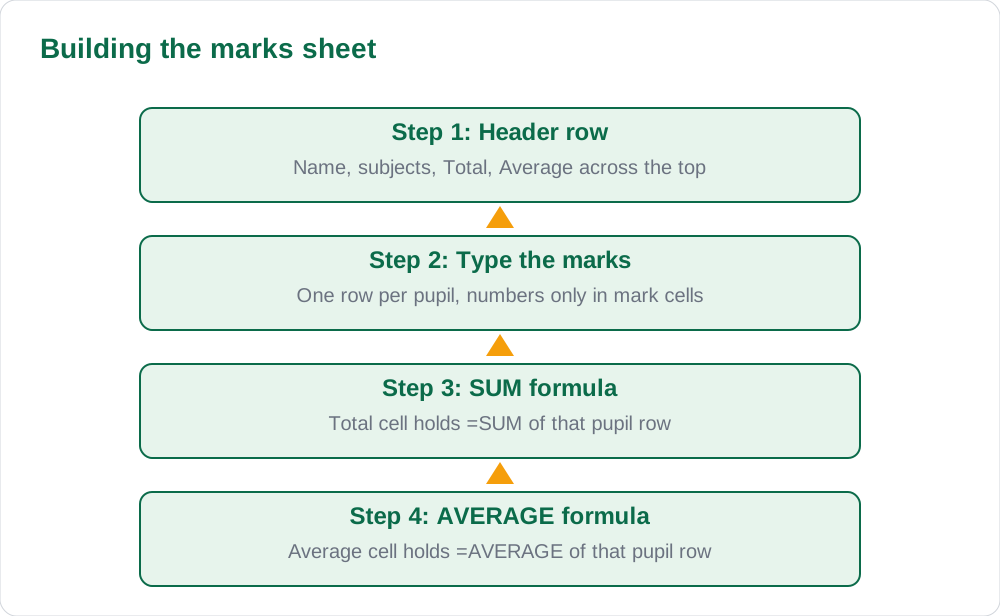
Start your marks sheet with a header row: Name in column A, then one column for each subject, then Total and Average. Type three or four pupils and their marks. To add a row of marks, click the Total cell and type a formula such as =SUM(B2:D2), which adds the marks in cells B2 to D2. The range B2:D2 means every cell from B2 through D2, and the colon is how you write a range in a formula.
For the average, type =AVERAGE(B2:D2) in the Average cell. AVERAGE adds the range and divides by how many numbers it holds, so you never need to count them yourself. After the first row works, copy the two formulas down to the other rows instead of retyping them. The copied formulas adjust themselves to each new row, which is one of the most useful tricks in all of spreadsheet work.
IF: Letting the Sheet Decide
The IF formula lets the spreadsheet make a simple decision for you. Its pattern is =IF(test, value if true, value if false). For example, if a pass mark is 40, the formula =IF(E2>=40, Pass, Fail) looks at the average in cell E2 and writes Pass when the average is 40 or more, and Fail when it is below 40. The test uses comparison signs: greater than, less than, and equals.
IF formulas are worth learning slowly, because one small mistake changes every answer. Check the test first, then the two results, then the brackets. A missing bracket or a wrong cell address is the most common error. When a result looks wrong, click the cell and read the formula in the formula bar instead of guessing. The formula bar always shows the truth about what a cell is really doing.
Formatting Numbers So They Make Sense
Raw numbers are easy to misread, so format them to help the reader. Show averages with one decimal place instead of six, use the same number of decimal places down a whole column, and bold the header row so it stands out. A reader should be able to scan a column and compare values without counting decimal digits. These small touches are the difference between a sheet that looks finished and one that looks like rough work.
Use borders lightly to separate the header row and the totals, and never type numbers with commas inside a cell, because the program may read them as text instead of numbers. If a column shows a row of hash signs, the column is simply too narrow: widen it and the numbers appear. Never shrink the font to hide a layout problem; fix the layout instead.
- Averages with one decimal place are easier to compare than long decimals.
- Bold the header row and keep the same decimals down a column.
- Widen a column that shows hash signs; do not shrink the font.
- Type numbers plainly, with no commas inside the cell.
Practice: Build Your Own Marks Sheet
Now build the full sheet without looking back at the steps. Make a sheet with five pupils, three subjects, Total, Average, and Result. Use SUM for totals, AVERAGE for averages, and IF for the pass or fail result with a pass mark of 40. Then test it: change one mark and watch the total, average, and result all update. If they do not update, the cells hold typed numbers, not formulas, and you should retype them as formulas.
Once the sheet works, try two challenges. First, add a highest mark for each subject at the bottom of the sheet. Second, sort the rows by total to make a merit list, but keep a copy of the original order first, because sorting changes the sheet. If your school keeps a library register, the same row-and-column thinking appears again in our guide to database basics tables records fields.
- Five pupils, three subjects, Total, Average, Result.
- Change one mark and check that every answer updates itself.
- Challenge one: add a highest mark row for each subject.
- Challenge two: sort by total, from a copy, to make a merit list.
AI Help: Muse AI
Muse AI is Meta's personal AI assistant, and it can help with checking a spreadsheet formula you describe in words before you type it in. Muse AI does not give official Sindh Textbook Board answers — always verify against your Sindh Textbook Board book and your teacher.
Join Muse with invite code LTGSWD — in the Muse app, go to Settings > Redeem token and enter the code.
Disclosure: LTGSWD is the author's Muse invite code.
5 key points you must know
- Every formula starts with an equals sign.
- SUM adds a range; AVERAGE adds it and divides by the count.
- IF follows the pattern: test, value if true, value if false.
- Change one number and every formula using it updates itself.
- Format numbers consistently so a reader can compare them at a glance.
Frequently asked questions
What happens if I forget the equals sign in a formula?
The program treats your typing as plain text and shows the formula itself instead of the answer. Add the equals sign at the start and the calculation will run.
Why does my cell show hash signs?
The column is too narrow for the number. Widen the column and the number will appear. The value is still correct underneath.
Why does copying a formula change its cell addresses?
That is by design. Copied formulas adjust to their new row, so a formula for row 2 becomes the same formula for row 3. This saves retyping and is one of the most useful spreadsheet behaviours.
What is the most common IF formula mistake?
A wrong cell address or a missing bracket. Click the cell, read the formula in the formula bar, and check the test, the two results, and the brackets one by one.
Solved notes — preview free
These guides work best with the solved exercises. Preview the solved notes free on this website — 119 solved notes for Classes 6–10 in Sindhi, Urdu, English and Arabic medium. Or browse the full solved notes catalogue for your class and medium. New solved notes are added regularly — check the catalogue for coming-soon books.